![Adoptech-logo-GreyWithoutStrapline-1.png]](https://knowledge.adoptech.co.uk/hs-fs/hubfs/Adoptech-logo-GreyWithoutStrapline-1.png?height=39&name=Adoptech-logo-GreyWithoutStrapline-1.png)
What are the different status settings for a Check?
A Check can have one of the following status settings:
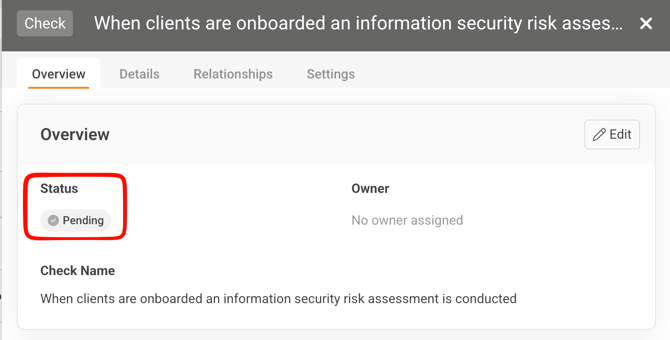
1. Pending - None of the tests required to validate the status of the Check have been run.
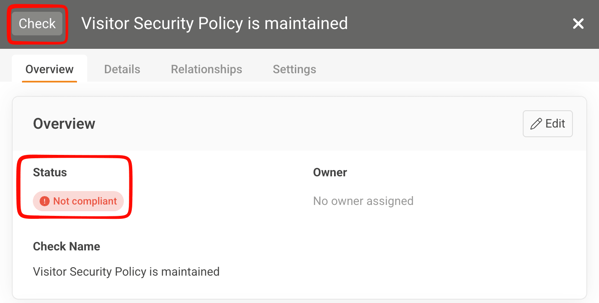
2. Not compliant (failed) - One or more of the tests required to be run to validate the status of the Check has failed.
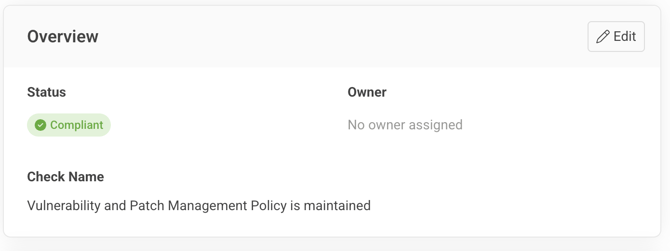
3. Compliant - all tests required to be run to validate the status of the Check have passed.
How do I change a Check's status to Compliant?
The status of a Check is determined by the status of its Associated Tests.
A Check's initial status is Pending as none of the required tests have been run.
If any Associated tests fail then the status. of the Check will be Failed.
All associated tests need to pass for a Check's status to be Compliant.
To simplify the process, Checks have already been created within the platform covering many of the standard checks that need to be carried out.
- Every control needs to have at least one check associated.
- The status of a Control is determined by the status of all underlying Checks; only when all controls checks are marked as compliant will the control be set to compliant.
- The status of a Check is determined but the status of all underlying Tests; only when all Tests are compliant will the Check be compliant.
A member of staff should be appointed as owner of the check. The owner is responsible for ensuring the check is relevant, has been carried out, the status is accurate and that issues are escalated.
Adoptech have made available a number of integrations to help automate you checks and test. Take a look at the Apps and Integration Page (Available tab) for a list of supported applications that can be integrated into Adoptech. Have a look at this help article outlining the types of integrations and how they work.
Here are some useful articles on setting a check status to be compliant:
Need Help? Contact support@adoptech.co.uk or open a chat