![Adoptech-logo-GreyWithoutStrapline-1.png]](https://knowledge.adoptech.co.uk/hs-fs/hubfs/Adoptech-logo-GreyWithoutStrapline-1.png?height=39&name=Adoptech-logo-GreyWithoutStrapline-1.png)
Overview
The CyberSmart integration allows MSP partners to sync device security and compliance data from CyberSmart into each client's Adoptech account. The connection uses OAuth2 API credentials issued at the partner level, so one set of credentials covers all of your managed organisations.
Step 1 — Start the connection in Adoptech
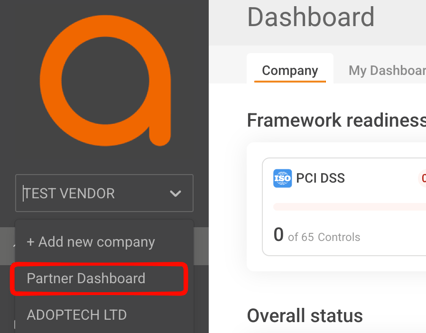
- Click on the vendor dropdown and select Partner Dashboard.
- Go to Apps & Integrations in the left sidebar.
- On the Available tab, find the CyberSmart card and click Connect.
- A side drawer will open asking for your Client ID and Client Secret.
Note: If you don't see the Partner Dashboard option, please contact Support.
Keep this drawer open and follow the steps below to retrieve your credentials from CyberSmart.
Step 2 — Find your Client ID and Client Secret in CyberSmart
Your API credentials live in the CyberSmart partner portal.
- Log in to your CyberSmart account at app.cybersmart.co.uk
- In the left sidebar, open up the Partner Dashboard dropdown menu.
- Select Settings and click CyberSmart API.
-
- Client ID — displayed in a text field with a copy button. Copy this value.
- Client secret — shown as Hashed once credentials have been generated. For security reasons, the client secret cannot be displayed again after it is first generated.
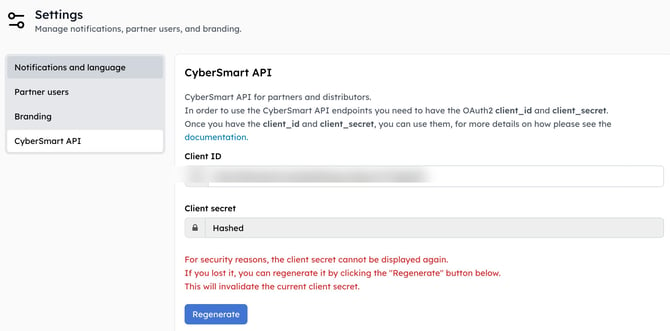
If you didn't save your Client Secret when it was first generated, you'll need to regenerate it:
- Click the Regenerate button at the bottom of the CyberSmart API page.
- Confirm the prompt. New credentials will be generated immediately.
- Copy both the Client ID and Client Secret now — CyberSmart will show the secret only once. It cannot be retrieved after you leave or refresh the page.
- Store your Client Secret securely (e.g. in a password manager).
Important: Regenerating credentials invalidates your existing Client Secret. If Adoptech is already connected, you will need to reconnect using the new credentials.
Step 3 — Complete the connection in Adoptech
- Return to the Connect CyberSmart drawer in Adoptech.
- Paste your Client ID and Client Secret into the fields provided.
- Click Connect.
After connecting — add your clients
On the Apps & Integrations page:
- Select Connected tab at the top.
- On the Cybersmart integration, click Manage.
- Click Add client.
- Select the Adoptech vendor and enter the client's CyberSmart organisation name.
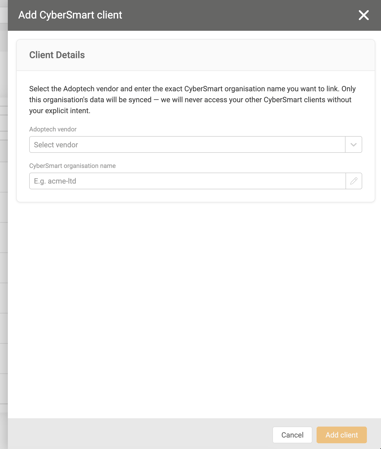
The client will appear with Awaiting connection status until they connect CyberSmart from their own Apps & Integrations page. Once they do, status will update to Connected and device data will begin syncing.
Troubleshooting
| Problem | Solution |
|---|---|
| Client Secret field shows Hashed in CyberSmart | The secret has already been generated but cannot be re-displayed. Click Regenerate to create a new one. |
| Client stuck on "Awaiting connection" | The client needs to log into their Adoptech account, go to Apps & Integrations, and click Connect on the CyberSmart card. |