![Adoptech-logo-GreyWithoutStrapline-1.png]](https://knowledge.adoptech.co.uk/hs-fs/hubfs/Adoptech-logo-GreyWithoutStrapline-1.png?height=39&name=Adoptech-logo-GreyWithoutStrapline-1.png)
In this guide
When an organisation requests a security or compliance assessment through Adoptech, you'll receive an email invitation. This guide walks you through the full process — from opening that email to submitting your completed response.
Step 1 — The invitation email
Your assessment begins with an email from Adoptech, sent on behalf of the organisation requesting your compliance information. The sender address will read support@adoptech.co.uk — check your spam folder if you don't see it in your inbox.
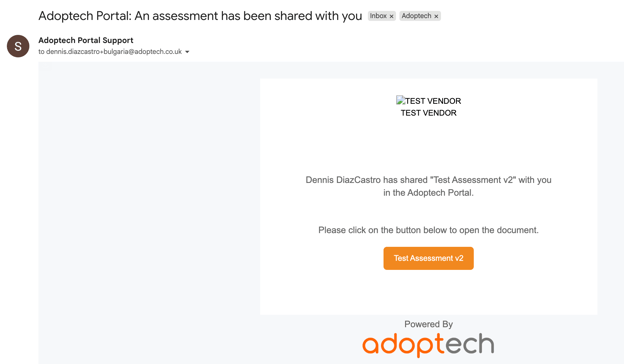
Click the orange button to open Adoptech in your browser. The link is unique to this invitation and expires once account has been created.
Note: The email must be sent to the individual that is responding to the assessment; the invitation cannot be transferred.
Step 2 — Creating your account
If you haven't used Adoptech before, you'll need to create an account before you can access your assessment. The process takes under two minutes and only needs to be completed once — all future assessments from any requesting organisation will be accessible through the same account.
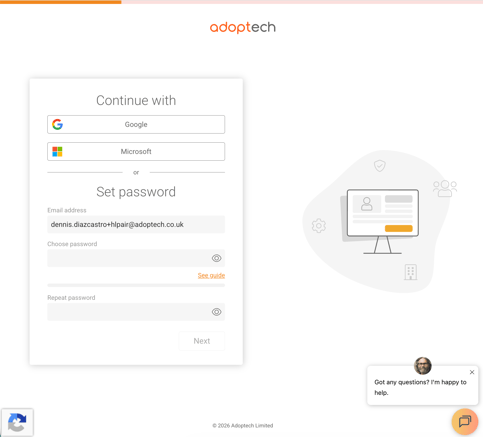
1. You'll be prompted to enter your password. Click Next, when done.
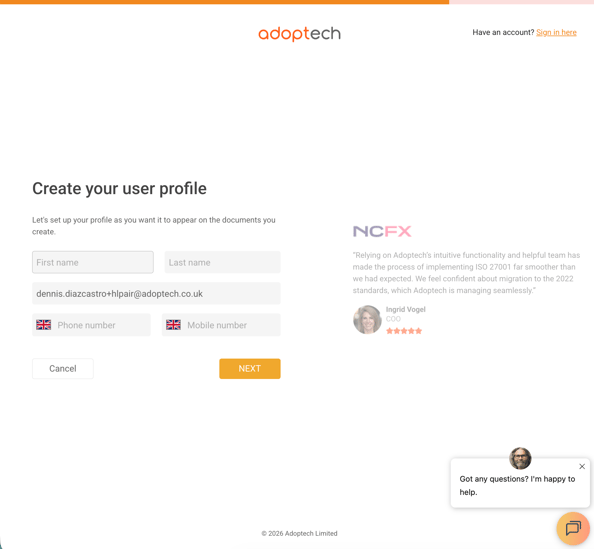
2. Add your First and Last Name and your Phone Number or simply click Next.
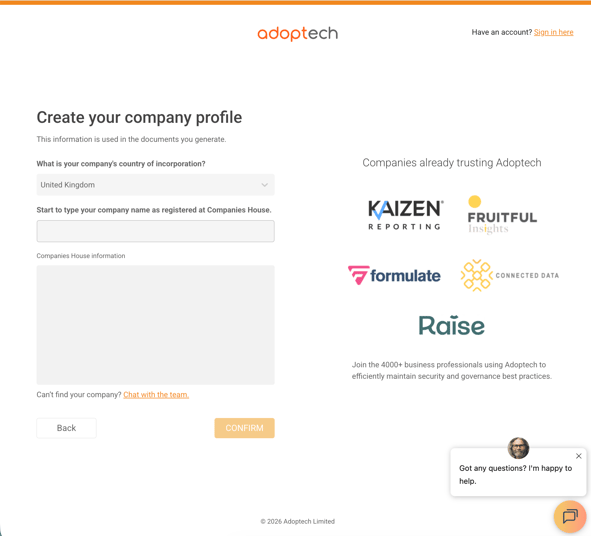
3. If you're from the United Kingdom, start typing your registered company name. Adoptech looks up your details automatically using Companies House data — once your company appears, select it to populate the form and click "Confirm". If your company doesn't appear, contact us via the chat at the bottom right corner.
4. If your company is incorporated outside the UK, the form switches to manual entry. Fill in your Company legal name, Address line 1 and Zip Code. Click "Confirm" when done.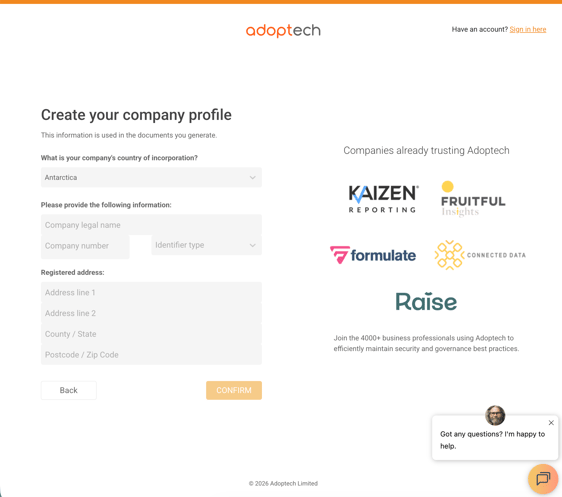
Step 3 — Filling out the assessment
The assessment opens showing question categories. Read this carefully — it sets out exactly what the requesting organisation needs from you. Expand a category to reveal its questions and work through them at your own pace.
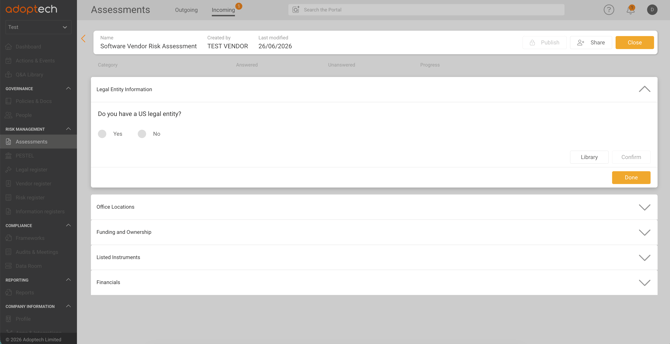
You will need to click Confirm after answering each question.
Step 4 — Submitting your response
When all required sections are completed, the "Publish" button becomes active. Click it from the Review tab or from the final section of the assessment.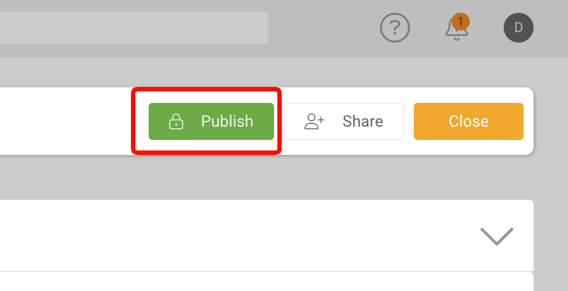
In the confirmation dialog click Publish.
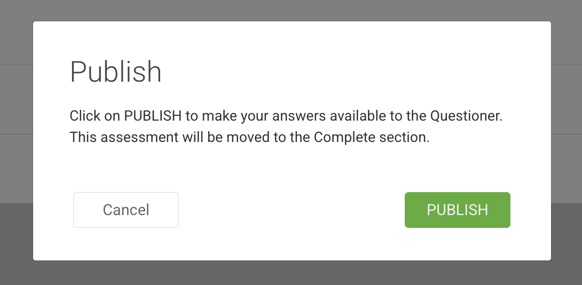
You'll see a confirmation screen.
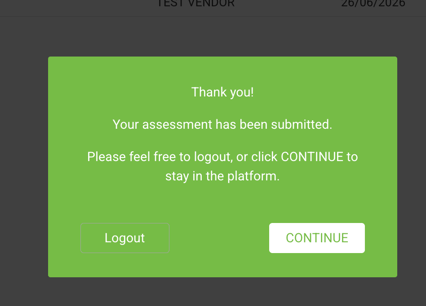
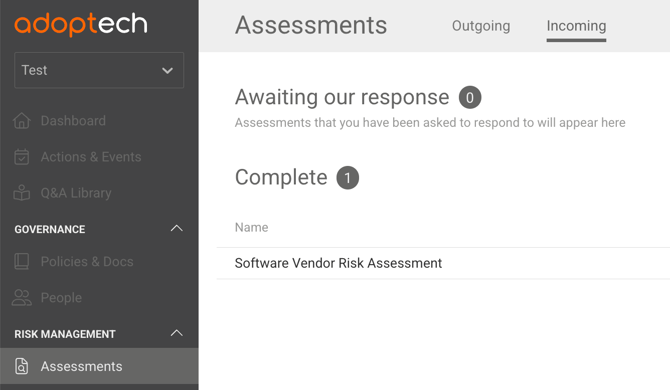
The assessment moves into the "Complete" section on the Assessments page. The requesting organisation will receive your response and typically begins their review within a few business days.
After submission — What happens next
Your response is now with the requesting organisation. They'll review your answers and the evidence you've provided. Depending on their process, they may come back with questions.
Need Help? Contact support@adoptech.co.uk or open a chat.