![Adoptech-logo-GreyWithoutStrapline-1.png]](https://knowledge.adoptech.co.uk/hs-fs/hubfs/Adoptech-logo-GreyWithoutStrapline-1.png?height=39&name=Adoptech-logo-GreyWithoutStrapline-1.png)
When someone leaves your organisation or changes role, you can move all of their Controls and Checks to a new owner in one go. You do not need to open and edit each item.
Reassign Controls or Checks
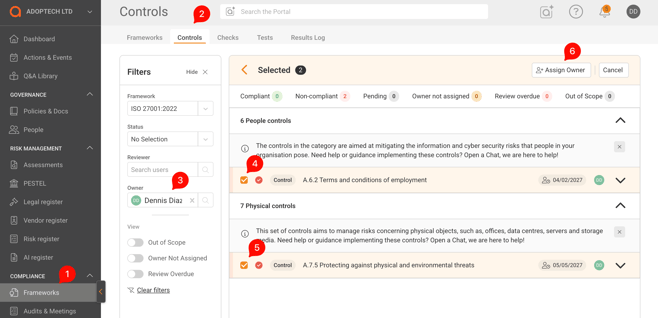
- On the Frameworks page, go to the Controls or Checks tab. In the Filters panel, choose the Framework and the current Owner. The list now shows only the items that person owns.
- Tick the box next to each item you want to reassign. The header changes to Selected and shows how many items you have picked.
- Click Assign Owner.
- In the Assign Owner window, search for the new owner and click Confirm.
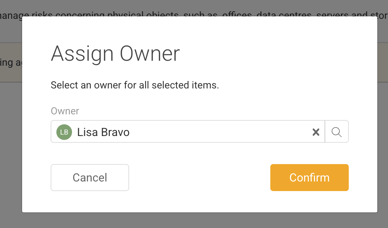
The new owner is set on every selected item. To stop without making changes, click Cancel in the header. This clears your selection.
Good to know
- Ticking a Control does not tick its Checks. If you want to reassign the Checks too, expand the Control and tick each Check, or use the Checks tab.
- On the Controls tab you can tick Controls and the Checks inside them together, then assign one owner to all of them at once.
- The same Assign Owner button is available on the Tests tab, so you can reassign Tests the same way.
Related articles
Need Help? Contact support@adoptech.co.uk or open a chat.