![Adoptech-logo-GreyWithoutStrapline-1.png]](https://knowledge.adoptech.co.uk/hs-fs/hubfs/Adoptech-logo-GreyWithoutStrapline-1.png?height=39&name=Adoptech-logo-GreyWithoutStrapline-1.png)
Enabling and disabling SSO
- Go to the People page.
- Click Settings in the table header.
- Under Account access, toggle SSO on or off.
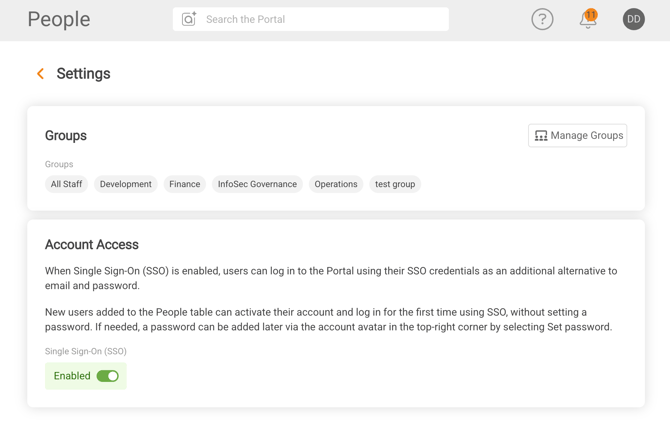
When disabling SSO, a confirmation modal will appear — review the warning and confirm to continue.
Important: If SSO is disabled, users who haven't set a password can only activate their account via an email invitation. They cannot log in until one is sent.
How users log in with SSO enabled
Without an email invitation
Users can log in directly from the Adoptech login screen using the Google or Microsoft SSO option. The first time they do, their account status changes from Invite to Portal to Active automatically — no password needed.
With an email invitation
The activation link takes the user to a page where they can either continue with SSO or set a password. Either option activates their account.
How users log in with SSO disabled
Without an email invitation
Users cannot activate their account — an email invitation must be sent first.
With an email invitation
The activation page shows the password option only.
Setting a password later
Users who have only ever logged in via SSO can add a password at any time:
- Click the avatar in the top-right corner.
- Select Set password from the dropdown.
- Enter and confirm a new password and click Confirm.
Once set, they can use either their password or SSO to log in — whichever they prefer.