![Adoptech-logo-GreyWithoutStrapline-1.png]](https://knowledge.adoptech.co.uk/hs-fs/hubfs/Adoptech-logo-GreyWithoutStrapline-1.png?height=39&name=Adoptech-logo-GreyWithoutStrapline-1.png)
Every policy in Adoptech has a version number (e.g. 1.0, 1.1, 2.0). When you create a new version, the current live policy remains in place until the new version completes its approval process. Once approved and published, the new version becomes live and the previous one is archived.
Starting a new version
- Navigate to the relevant policy and locate it in the Live section of your policy list.
- Click the meatball menu (⋯) on the policy row.
- Select Update current version.
The next steps depend on whether the policy was built in Adoptech or uploaded as a PDF.
Adoptech policies
Policies created in the Adoptech policy builder use a two-step update flow.
Step 1 — Set the version details
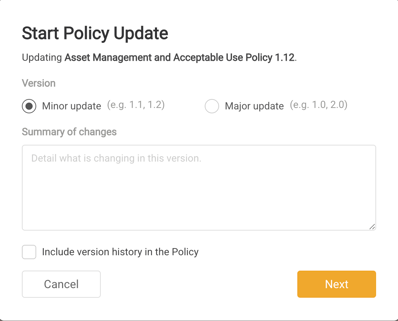
Summary of changes. Enter a brief description of what is changing in this version. This is stored against the version and visible in the version history section of the policy document.
Include version history in the policy (optional). Tick this to append a version history table to the end of the policy document, showing all previous versions, their change summaries, and approval dates. Useful for auditors and standards that require documented version trails.
Click Next. Adoptech will create a draft of the new version and open it for editing.
Step 2 — Edit and confirm
Make your changes to the policy content.
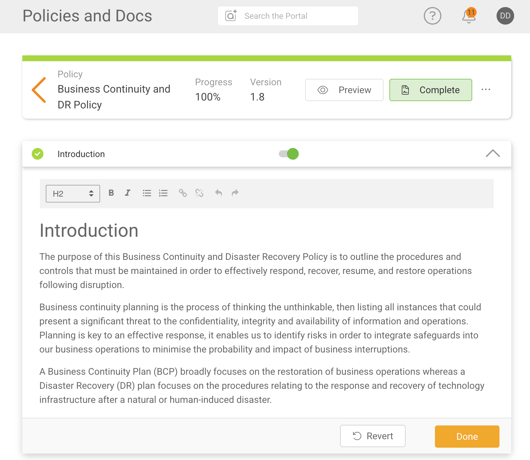
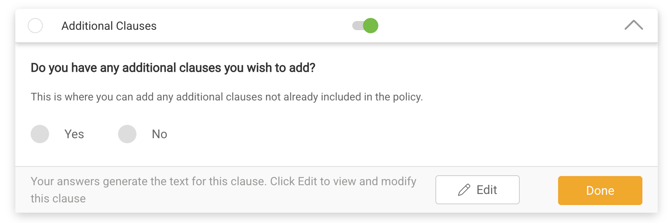
Note: Adoptech may update the standard text in policies or amend the questions to meet requirements. In this case, you will need to save your edited text and click Revert to answer the new questions.
When you're done, a Finish Policy Update modal will appear for you to confirm the version details before submitting for approval.
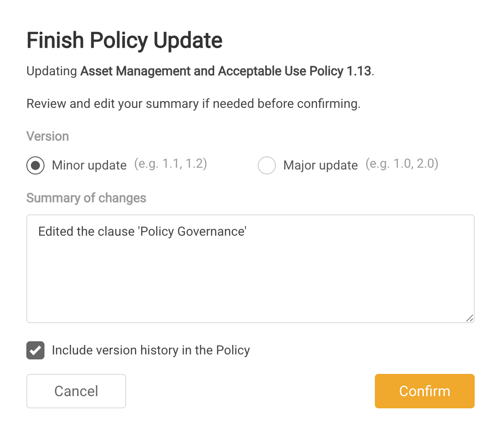
Click Confirm to submit the new version and manage approvals. Once done, the policy will be moved to the approvals section or Live policies.
Uploaded policies
Policies uploaded as PDFs use a single-step update flow.
A Policy Update modal will open. Fill in the following:
- Version type — Minor or Major (same as above)
- Summary of changes — brief description of what changed
- Upload new document — drag and drop your updated PDF, or click to browse. Only PDF files are accepted.
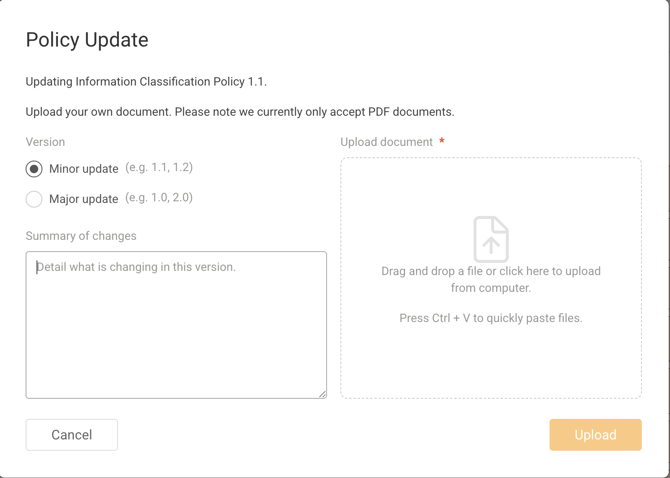
The Upload button becomes active once a file is selected. Click Upload to submit.
Note: The "Include version history in the policy" option is not available for uploaded PDF policies.
After creating a new version
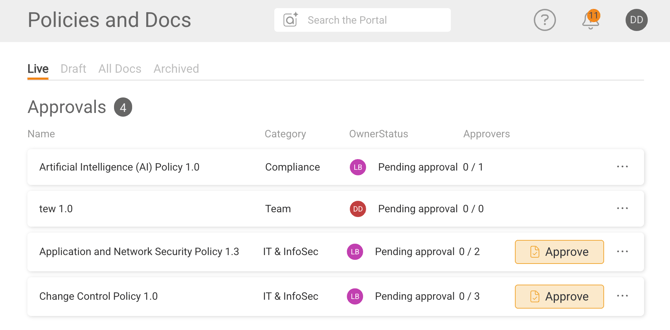
If your policy requires approval, the new version will enter the approval workflow before going live. You can manage approvals from the Pending section of your policy list — the same process as approving a brand new policy.
If approval is not required, the new version will go live immediately after submission.
Viewing version history
To see the version history for a live policy:
- Open the policy.
- In the Version section, you'll see:
- The current version number
- The summary of changes for this version
- Who approved it and when it went live
To download a full document audit showing all historical versions, click Download Document Audit in the Version section.
Minor vs Major version
There's no technical difference in how minor and major versions are processed — both go through the same approval workflow. The distinction is a communication tool for your team and auditors.
Use Minor for:
- Typo or grammar corrections
- Updated job titles or team names
- Clarifying language without changing meaning
Use Major for:
- New or removed policy sections
- Changes to obligations, responsibilities, or scope
- Updates driven by a new regulatory requirement or audit finding