![Adoptech-logo-GreyWithoutStrapline-1.png]](https://knowledge.adoptech.co.uk/hs-fs/hubfs/Adoptech-logo-GreyWithoutStrapline-1.png?height=39&name=Adoptech-logo-GreyWithoutStrapline-1.png)
The Microsoft Entra ID integration enables Adoptech to import user account data and group memberships, and to check which users have registered a multi-factor authentication (MFA) method.
This integration helps organisations:
- Maintain an accurate record of user accounts and group memberships
- Support user access reviews
- Provide evidence that staff have registered an MFA method
- Demonstrate that identity and access management controls are in place
- Keep Adoptech's people directory in sync with your Entra ID user base
Prerequisites
Before configuring the integration, ensure you have:
- An active Microsoft Entra ID tenant
- Admin access to create App Registrations in the Entra ID portal
- An Entra ID App Registration with the Microsoft Graph permissions described below
- For the MFA check only: a Microsoft Entra ID P1 or P2 licence. Microsoft only provides the MFA registration report to tenants with one of these licences
What Data We Collect
Once connected, Adoptech retrieves read-only information from Microsoft Entra ID, including:
- User profile details: first name, last name, email address, sign-in name (user principal name), mobile phone number and the other basic profile fields Microsoft returns by default, such as job title
- Group names, IDs and descriptions
- Which users are members of the groups you choose to sync
- For the MFA check: whether each user has registered an MFA method, whether the account is enabled, and whether it is a guest account
Adoptech does not modify your Entra ID users, groups or directory configuration.
What We Use the Data For
The imported data is used to:
- Keep the Adoptech people directory up to date
- Support periodic user access reviews
- Provide a record of group memberships for audit purposes
- Run the automated Test «Users have MFA registered on Microsoft Entra ID», which provides evidence for the Check «Staff are aware that MFA must be used whenever it is available»
Before you get started you will need:
The following configuration items are required to integrate Microsoft Entra ID with Adoptech:
- Application ID (the Client ID of your App Registration)
- Tenant ID
- Client Secret
- Groups to sync (optional): comma-separated group IDs or names
Step 1: Create the App Registration in Microsoft Entra ID
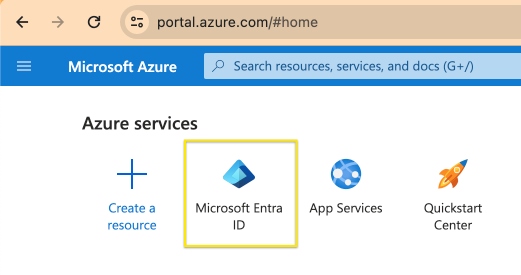
- Go to https://portal.azure.com/ in your browser, log in as an administrator and then click the icon for Microsoft Entra ID.
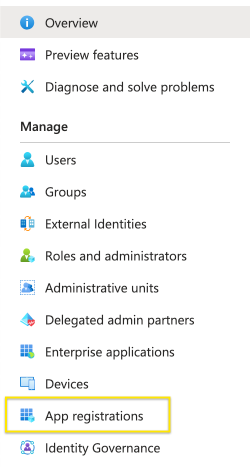
- From the left-hand side menu, choose App registrations.
- From the top menu, select New registration.

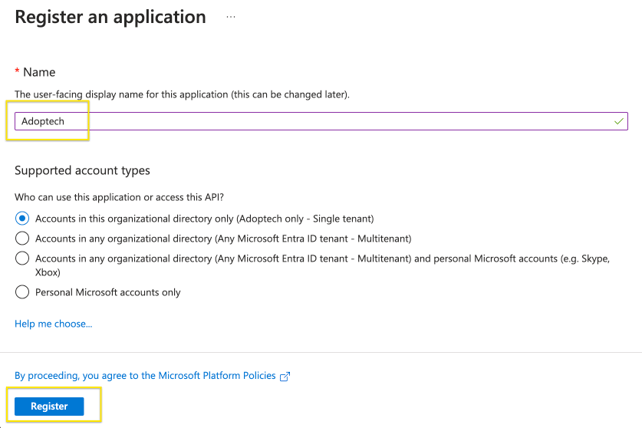
- Enter a name for the application. You can choose any name, but we recommend that you call it Adoptech. Set the supported account type to Single tenant. Then click Register.
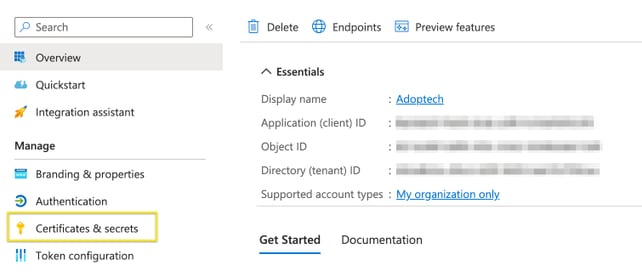
- Copy the Application (client) ID and the Directory (tenant) ID. If you hover your pointer over a value, a Copy to clipboard icon appears. You will need these values later to connect the Adoptech Portal to Microsoft Entra ID. Store them in a secure place, such as your password manager. Then click Certificates & secrets.
- Click New client secret. Enter Adoptech in the Description field and choose 730 days (24 months) in the Expires dropdown. Then click Add.
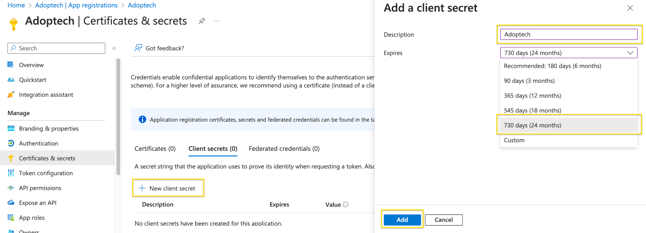
- Copy the string in the Value column (not the Secret ID). This is your client secret. Store it in a secure place, such as your password manager. Microsoft only shows it once.
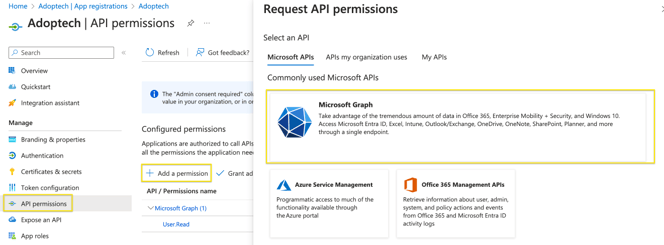
- From the left-hand side menu, choose API permissions. Click Add a permission, then click Microsoft Graph in the pop-up window.
- Choose Application permissions. In the Select permissions box, enter Directory. Open the Directory dropdown and tick Directory.Read.All. This lets Adoptech read your users and groups, but not change them. Click Add permissions.
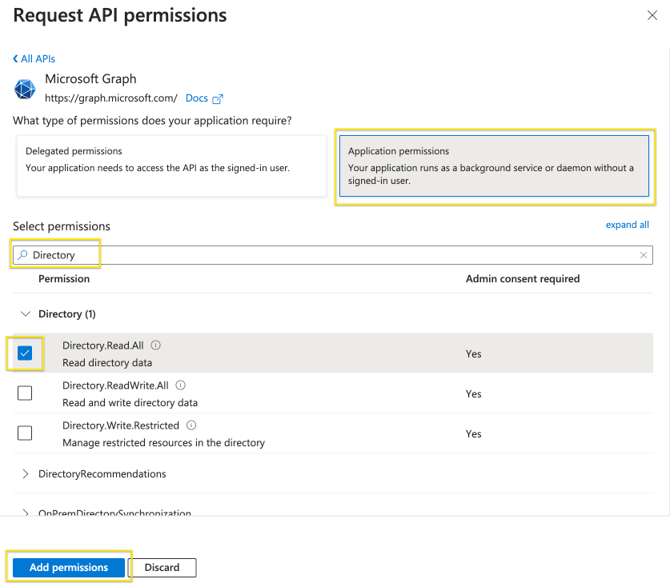
- To use the MFA check, add a second permission. Click Add a permission again, then Microsoft Graph and Application permissions. Enter AuditLog in the search box, tick AuditLog.Read.All and click Add permissions. Adoptech uses this permission only to read Microsoft's MFA registration report. Microsoft does not offer a narrower permission for this report. User sync works without it.
- Click Grant admin consent and confirm by selecting Yes. The Status column should now show Granted for each permission.
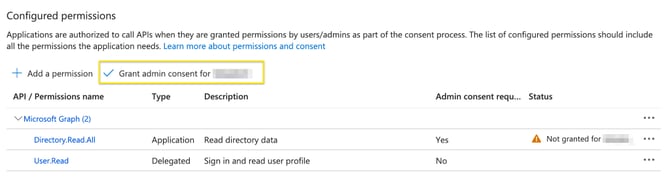
You do not need to give the app any Azure subscription role, such as Reader. Adoptech only uses Microsoft Graph. If you followed an earlier version of this guide and gave the Adoptech app the Reader role on a subscription, you can remove that role assignment.
Step 2: Connect the Adoptech Portal
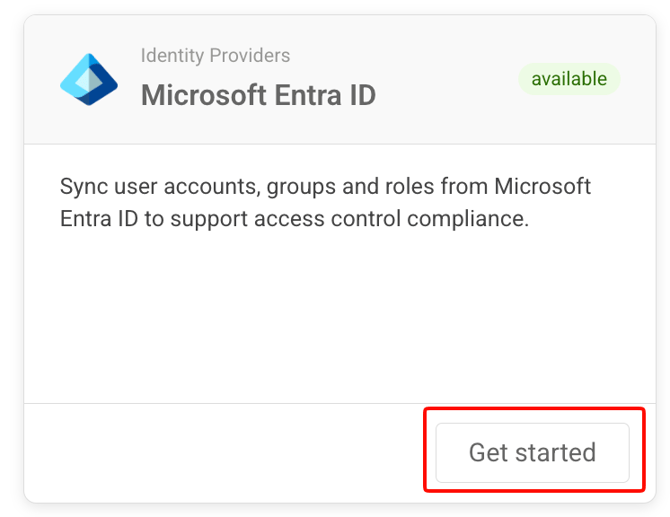
- Open the Adoptech Portal (https://portal.adoptech.co.uk/), click Apps & Integrations in the left-hand menu and find the Microsoft Entra ID card. Click Connect on the card.
- In the Connect Microsoft Entra ID form, enter the Application ID, Tenant ID and Client Secret you saved in Step 1. If you only want to sync some of your users, enter their groups in Groups to sync (see below). Then click Connect.
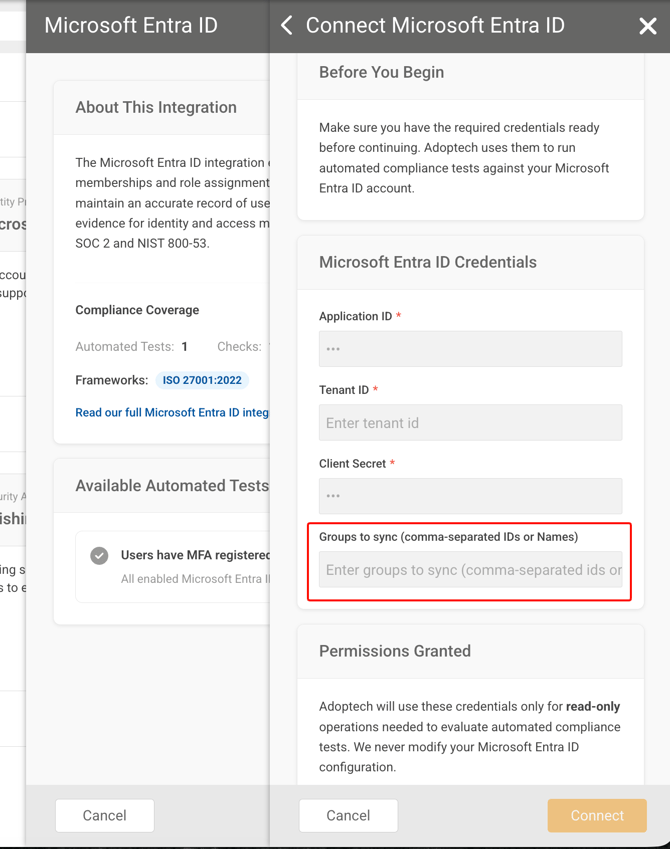
Using the "Groups to sync" field (optional)
This field lets you limit which people are brought into the Adoptech Portal from Microsoft Entra ID.
How it works
- If you leave this field blank, Adoptech syncs every account in your directory. This includes guest accounts, shared mailboxes, service accounts and disabled accounts. We recommend a dedicated group instead, such as "Adoptech Users".
- If you enter one or more groups, Adoptech only syncs users who are members of those groups.
You can enter:
- The group's display name (for example:
Adoptech Users,InfoSec Team) - Or the group's ID (GUID) copied from Entra ID
To sync more than one group, separate them with commas, for example:
Adoptech Users, IT Department, 12345678-abcd-1234-abcd-1234567890ab
Notes and tips
- Group names are not case sensitive, but they must match the name shown in Entra ID.
- Both security groups and Microsoft 365 groups are supported.
- Only direct members of a group are synced. If a group contains another group, the people in that inner group are not synced. Add the inner group to the field as well.
- We recommend using group IDs rather than names. Group names are matched against the list of groups Adoptech fetched when you connected. A group created or renamed after that is not found by name until you reconnect the integration. Group IDs always work.
- If a group can't be found, Adoptech treats it as having no members. Anyone who was only in that group is marked for removal. If none of your groups can be found, every user who can be removed is marked. The sanity check normally stops the sync in this case. Do not override it. Correct the group instead.
- Adoptech does not check whether an account is disabled. Remove disabled accounts from the synced group, or they will be added to the Portal and kept there.
If you are unsure which groups to use, ask your Microsoft 365 administrator for the correct group names or IDs, or to set up a dedicated group (for example "Adoptech Users") for this integration.
Which email address is used
For each person, Adoptech uses the Email field from Entra ID. If a person has no email address (usually an account without a mailbox), Adoptech uses their sign-in name instead, which may look like name@yourcompany.onmicrosoft.com.
When matching people who are already in the Portal, Adoptech checks both the email address and the sign-in name, so users added by hand before you connected are recognised and not duplicated.
If your organisation changes its email domain, people come into the Portal as new users and the old accounts are removed. Contact Adoptech support before you make the change, and we can help you check the impact.
Step 3: Turn on user sync
Connecting the integration does not add anyone to the Portal by itself. To start syncing your users:
- Go to People and click User sync.
- Under 1. Select the source you want to synchronise with, choose Entra ID.
- Under 2. Enable user sync, switch on Enable user sync.
- Under 3. Choose the sync frequency, choose One-off or Daily. We recommend a One-off sync first, so you can check the result before you switch to Daily.
- Click Sync.
To learn how the sync adds and removes users, and what the sanity check does, read How do I sync my users? and override the sanity check?
Checking that your staff have MFA set up
When the AuditLog.Read.All permission is granted, Adoptech runs the Test Users have MFA registered on Microsoft Entra ID every day.
- The Test passes when every enabled user has registered at least one MFA method. If any user has not, the Test fails and lists them.
- It checks the same users as user sync: your whole directory if Groups to sync is blank, or the members of those groups. Disabled accounts and guest accounts are not checked.
- It checks that each user has registered an MFA method. It does not check your Conditional Access or other sign-in policies.
- It needs a Microsoft Entra ID P1 or P2 licence. Without one, the Test fails with a message saying so.
Already connected? If you connected Microsoft Entra ID before the MFA check was available, add the AuditLog.Read.All permission to your existing Adoptech app registration and click Grant admin consent again (Step 1, items 10 and 11). You don't need to reconnect the integration in the Portal.
Renewing your client secret or reconnecting
Client secrets expire (after 24 months if you followed the steps above). When the secret expires, user sync and the MFA check stop working. Set a reminder to renew it before it expires.
- In Entra ID, open the Adoptech app registration and go to Certificates & secrets.
- Click New client secret, choose 730 days (24 months) and click Add. Copy the Value, not the Secret ID.
- In the Adoptech Portal, go to Apps & Integrations and open the Microsoft Entra ID card.
- Under Settings, click Disconnect.
- Click Connect. The Reconnect Microsoft Entra ID form opens.
- Enter the Application ID, Tenant ID and new client secret. Re-enter your group IDs in Groups to sync.
- Click Reconnect.
Notes:
- Disconnecting does not remove any users, and your user sync settings are kept.
- If the connection fails, the details you entered still replace the old ones, and the sync stops until you reconnect successfully. Double-check that you copied the secret Value.
- Reconnecting does not run a sync straight away. The next daily sync uses the new details, or you can run a One-off sync from the People page.
- If you are reconnecting to a different tenant, or changing which groups you sync, contact Adoptech support first. People who are not in the new tenant or groups will be removed from the Portal.
Troubleshooting
| Issue | Likely cause | Resolution |
|---|---|---|
| Nobody appears on the People page after connecting | User sync is not switched on. Connecting alone does not sync anyone. | Follow Step 3: Turn on user sync. |
| Some members of a synced group are missing | They are in a group inside the synced group. Only direct members are synced. | Add the inner group to Groups to sync, or add the people to the synced group directly. |
| The MFA Test fails with "did not allow Adoptech to read MFA registration data" and asks for permissions | The AuditLog.Read.All permission is missing or not consented. | Add AuditLog.Read.All and click Grant admin consent (Step 1, items 10 and 11). If you followed this guide, Directory.Read.All already covers the other permissions the message names. |
| The MFA Test fails and says a P1 or P2 licence is needed | Your tenant does not have a Microsoft Entra ID P1 or P2 licence. | The MFA check needs one of these licences. User sync still works without it. |
| The MFA Test fails with "None of the groups to sync were found" | None of the names in Groups to sync match a group Adoptech knows about. | Check the spelling, or use group IDs. If the group was created or renamed after you connected, reconnect the integration. |
Related articles
- How do I sync my users? and override the sanity check?
- How do I set up my Microsoft Intune integration?
Need Help? Contact support@adoptech.co.uk or open a chat.